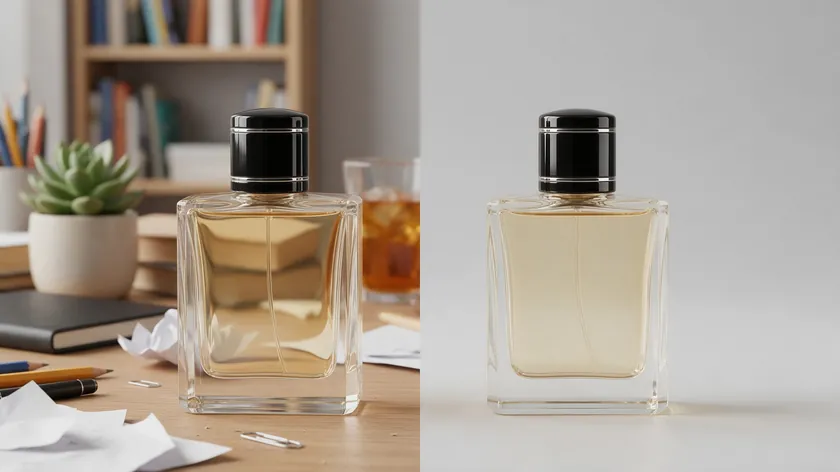
You have a product photo, the edges look rough, and the background is a mess of shadows and creases. This guide shows you how to remove background from product image files you already have—fast, without losing quality on tricky edges.
It is a practical workflow for sellers who need to remove background product photography shots in minutes, covering hard subjects like glass, jewelry, fabric, and white-on-white products, plus clear advice on which export to pick for every ecommerce channel.
Table of Contents
Why remove background from product photography at all?

White backgrounds help customers focus on products—shape, texture, finish—without competing visuals. Clean backgrounds also support brand trust and a consistent visual identity on every page where your products appear, and they can support conversion rates, although results vary by store and category.
Once you remove backgrounds from your product shots, the same cutout works on your own store, marketplaces, ads, and social posts. That means faster listing creation, less rework, and a whole catalog that looks cohesive. You replace hours of per-image editing with a repeatable process that scales with your business.
This guide focuses entirely on photo editing after the shoot. It is not a photography course, not a tool roundup, and not a Photoshop tutorial. Professional product photography combines effective on-set techniques with digital tools—we cover the digital side here.
Before you cut: what makes a product photo easy to remove the background from?
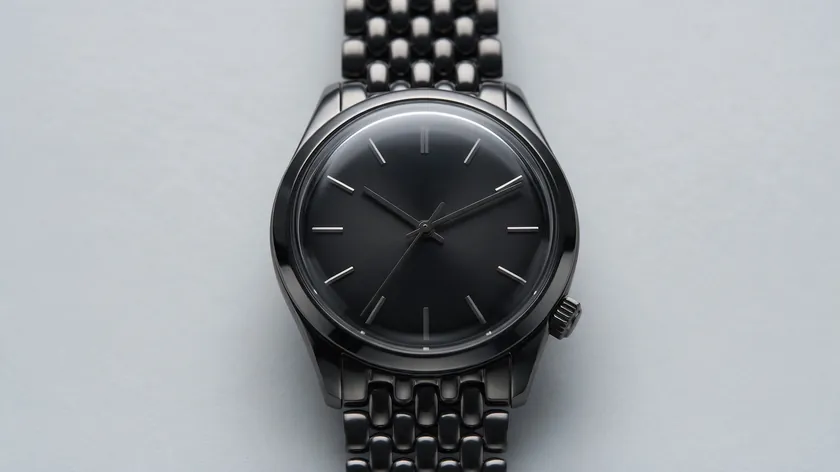
Even, soft lighting with minimal harsh hotspots gives a background removal tool less noise to fight around edges. A clean background makes automated removal more reliable and reduces editing time.
Contrast helps too: a dark watch on pale gray or clear glass on mid-gray cuts out more cleanly than clear glass on white. Sharp focus and enough resolution around the edges also matter, because soft edges look jagged when you zoom in to 100–200%.
For full shoot planning, lighting setups, and camera angles, see the ecommerce product photography guide.
Automatic AI vs manual background removal for product images
AI automatic cutout uses machine learning to detect edges and isolate products from their backgrounds in seconds, and for most sellers a fast background remover handles most product photos without manual editing.
Manual editing with brush tools and layer masks is usually reserved for the hardest frames—messy reflections, low-contrast white-on-white edges, or intricate details that confuse the algorithm.
For detailed manual masking, follow the How to Remove White Background in Photoshop tutorial.
For a deeper method comparison, read Removing Background from Photo: Choosing the Right Method. The rest of this article assumes you want a fast AI-based workflow tailored to product photography.
How to remove background from product image with RemoveBackground.app

Here is the practical step-by-step for removing the background from a product photo and getting a listing-ready file in minutes.
- Upload your image. Go to RemoveBackground.app, drop in your product photo or paste an image URL. The automatic background remover creates a transparent cutout preview in moments.
- Review the edges. Use the + and − zoom buttons under the preview to inspect tricky areas—glass rims, jewelry chains, fabric fringes—for halos, missing bits, or leftover backdrop.
- Fix what’s wrong. Open the Actions tab for quick background cleanup: use Restore to paint back missing product parts and Erase to remove stray background patches, and adjust Brush size so your strokes stay close to the real edge. If the source photo has low contrast, consider re-running from a cleaner, higher-contrast file.
- Choose the output. In the Background tab, keep the cutout transparent for design flexibility, pick white from the Color options for marketplace main images, or use the color picker for a light neutral tone on store product pages.
- Download in full quality. Click Download and save the file without downscaling the original photo. Keep one transparent version as your master and one white-background version for marketplace uploads.
- Reuse the same cutout (optional). Save the clean master file so you can drop it onto different layouts or backgrounds later without redoing the background removal. One cutout can serve your whole catalog of visuals for that SKU.
That is the full workflow for a single image: upload, review, fix, choose, and download. The review step matters most for the hard subjects below.
Hard product subjects: how to avoid halos, missing parts, and fake-looking cutouts
Some product photos are simply harder for any background removal tool. Glass and liquids, reflective metal, fabrics with fine edges, and white-on-white shots challenge even the best background remover because the subject blends into or reflects the scene behind it.
This section is the core of the guide. It explains what goes wrong per product type and what to watch for when reviewing AI cutouts.
| Product type | What goes wrong | What to check |
|---|
| Glass / transparent items | AI erases see-through areas or leaves ghost patches of the old backdrop inside the glass | Rims, edges, embossed logos, internal reflections |
| Jewelry & reflective metal | Narrow parts (chains, prongs) get clipped; halos appear where reflections meet the background | Clasp ends, tiny links, ring interiors, specular highlights |
| Fabric & fine edges | Edges are oversimplified into jagged or “helmet hair” outlines | Cuffs, hems, fringes, thread-level detail at boundary |
| White-on-white products | Boundary disappears; muddy, indistinct silhouette | True shape on a contrasting preview, edge sharpness |
Glass and transparent items
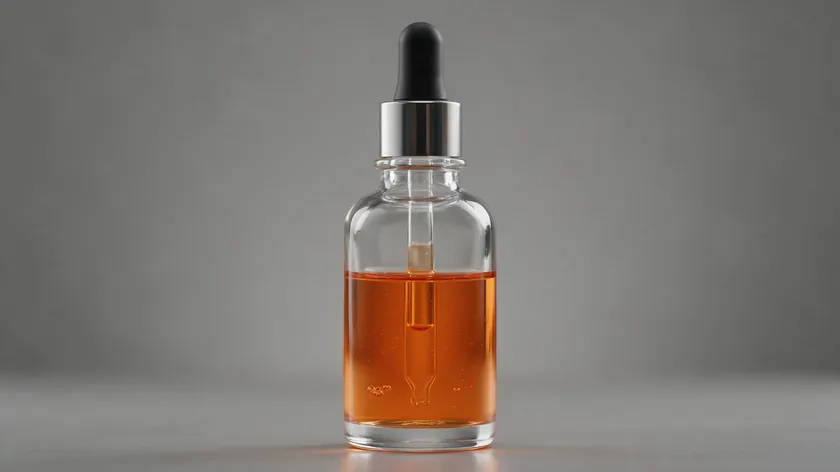
Perfume bottles, drinkware, candle jars, and skincare droppers with clear liquid are common glass products sold online. AI background removal can misinterpret see-through areas—either erasing part of the object or leaving faint ghost patches of the old backdrop inside the glass.
Check rims, edges, and embossed logos carefully, especially where the original background color showed through the glass walls.
Keep a hint of real glass edge contrast and internal reflections so the item doesn’t look like a flat sticker on its new background. If something vital disappears—like a measurement line or logo—paint it back with a light restore stroke and avoid over-smoothing those edges.
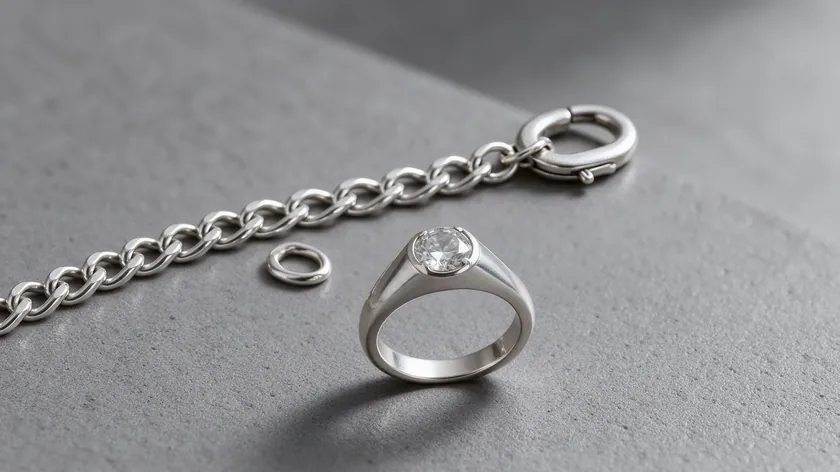
Silver necklaces, gold rings, stainless steel watches, and chrome hardware often reflect the original shooting environment. AI cutouts sometimes bite into narrow metal parts—chains, prongs, watch crowns—or leave thin halos where bright reflections meet a light background.
Zoom in on the smallest elements: clasp ends, tiny links, and ring interiors. Make sure none are chopped off or unnaturally thickened. Preserve natural specular highlights and gradients while only removing genuinely unwanted background reflections or color casts at the edges.
For complex, layered jewelry shots with multiple necklaces overlapping, you may need a few extra Restore and Erase strokes but can still rely on RemoveBackground.app for the heavy lifting.
Fabric, hair, and other fine edges

Sweaters, towels, rugs, plush toys, and products with threads, fur, or hair-like edges (faux-fur hoods, tassels, fringed cushions) are common soft goods. AI background removal tools sometimes over-simplify these edges, producing jagged outlines or a “helmet hair” effect, especially when the original backdrop was busy or low-contrast.
Check cuffs, hems, fringes, and any place where the fabric transitions into the background. Use a small Brush size around fringes so you restore fine detail without leaving a blurry halo, which looks fake against white or colored backgrounds.
For apparel on invisible mannequins or flat-lay clothing, spend an extra moment on the neckline and sleeves so the garment shape looks clean and true to size.
White-on-white products and low-contrast edges

White earbuds, ceramic mugs, skincare bottles, sneakers, and bedding photographed against pale backdrops are classic low-contrast challenges. The background remover may not detect a strong boundary, causing missing chunks of product or vague, muddy edges where the outline blends into the background.
Switch the background to a contrasting color in the Color tab—mid-gray works well—so the true shape is easier to judge. Keep edges slightly tight rather than heavily blurred—sharp but honest edges look more professional for white-on-white items.
If a listing requires a pure white background, judge the silhouette on a contrasting background first, then switch to white from the same Color options once you’re happy with the shape.
Choosing transparent vs. white: the best export for each ecommerce use
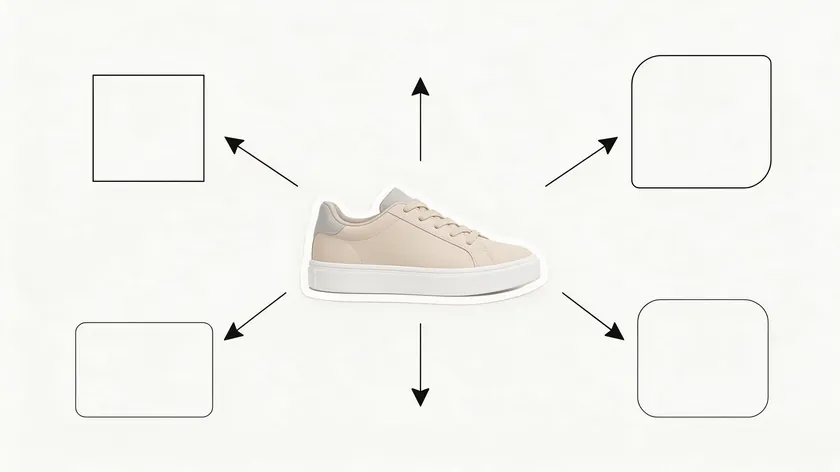
Once the background is removed, the next big decision is which export background and format to use for each channel. This is about practical export choices—transparent vs solid, PNG vs JPEG—not pixel sizes or marketplace specs.
| Use | Best export | Why |
|---|
| Store product page | Transparent PNG or neutral-background JPEG | Flexibility to match your site theme and brand |
| Marketplace main image | Pure white background JPEG | Marketplaces such as Amazon and eBay generally require or prefer a solid white main image |
| Ads & social | Transparent PNG master | Drop onto campaign designs without re-running removal |
| Catalog templates | Transparent PNG at consistent scale | Same cutout flows into multiple page layouts in one go |
For a full breakdown of white-background rules across platforms, see White Background for Selling Items: Marketplace Rules & Setup. For format specifics, see How to Save an Image with a Transparent Background.
Replacing the background: color, scene, or blur
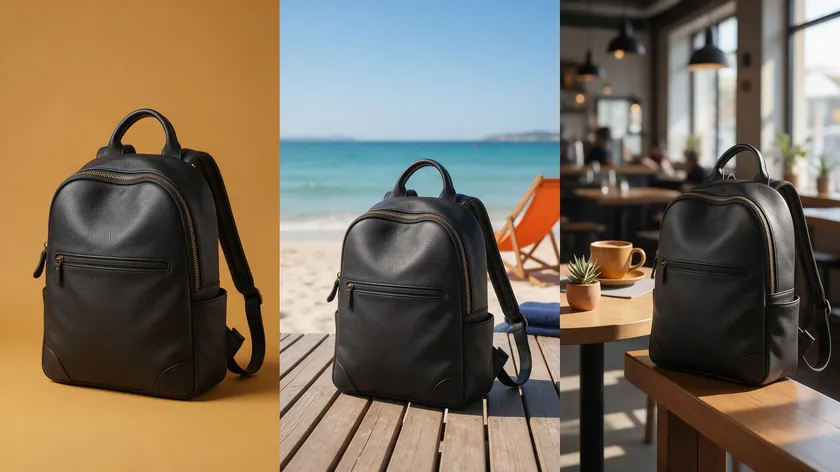
A transparent cutout is a master file, but many listings, ads, and social posts need a finished look. In the Background tab you can place the product on a color, a scene, or a softened version of the original, then download the result.
Solid color backgrounds
A solid color is the fastest way to turn a cutout into a brand-ready image. Pick white for marketplace main images, a soft neutral for store pages, or a brand color for ads and social posts.
Use the same color across a product line so the whole catalog looks like one collection.
Photo and lifestyle scenes
The Photo options let you drop the product into a ready-made scene or add your own background image. This works best for ads and social posts, where a lifestyle context helps the product feel real.
Keep the scene simple and match its light direction to the product so the cutout does not look pasted on.
Blur
The Blur option softens the original background instead of replacing it, which keeps a sense of place while pulling attention to the product. It suits lifestyle shots where the setting matters, but skip it for marketplace main images that need a clean white background.
Quality check: spotting background removal issues before upload

A 30–60 second review can prevent ugly halos and missing product parts from going live on your storefront. This quick checklist catches the most common removal problems.
| Check | What to look for | Quick fix |
|---|
| Halos around the product | Light or dark outlines fringing the edges | Erase along the fringe with a small brush, or rerun from a higher-contrast source |
| Clipped edges | Tips, corners, or thin parts missing | Paint those areas back with Restore, then recheck while zoomed in |
| Leftover backdrop | Small patches under straps, inside handles, between legs | Use Erase around those pockets |
| Lost contact shadow | The product appears to float on the page | Add a soft, realistic shadow under the product when you place it on its new background |
| Color spill | Background color reflecting onto product edges | Erase the tinted fringe, or run a light color correction in your usual editor |
Once this checklist passes, your product image is usually safe to export and reuse across channels. Perfect product photos come from a clean cutout plus a careful final review. Run it every time, especially on glass, jewelry, and white-on-white shots.
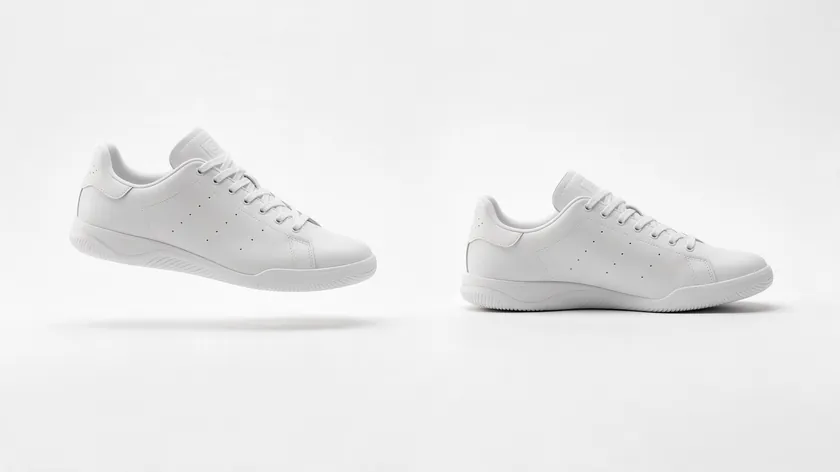
Completely removing every shadow can make a product look like it’s floating, especially on pure white backgrounds. Adding a grounding shadow prevents the product from appearing to float.
Preserve or re-add a subtle shadow directly under the product’s contact points so it looks grounded on the page. For advanced shadow editing techniques, see How to Remove Shadow from Picture.
Batch consistency without losing quality
For catalogs with many SKUs—full jewelry lines or apparel collections—consistent background removal (same crop, angle, and background choice) matters as much as each individual cutout.
Keep exposure and color consistent before removal, and choose the same output (transparent or white) for similar product images so the whole catalog stays cohesive.
For deeper batch-editing and full editing workflow tips, see How to Edit Product Photos for E-Commerce (Step-by-Step).
Common background removal mistakes in product photography
Your product shots might still look off even though the background is technically gone. Here are the removal-specific mistakes that cause rework and hurt your listing.
Removing the background before fixing exposure
If you remove the background from a dark or color-cast image, muddy edges and halos get locked in. Fix basic exposure and white balance first so the edges between the subject and the old backdrop are clean and natural before you process.
Over-feathering the edges
Trying to hide rough outlines by adding heavy feathering creates a fuzzy glow around the product image. Soften edges only where the detail genuinely needs it—everywhere else, keep them crisp.
Fully erasing the contact shadow produces a floating, AI-generated look. This is especially noticeable on footwear, furniture, and tabletop products. A subtle shadow under the object keeps the cutout grounded and realistic.
Choosing the wrong export for the channel
Uploading a transparent PNG where only a white JPEG is expected—or compressing a file so heavily that edges become blocky—undoes all your careful work. Match the format to the channel every time.
Treat one well-edited, correctly exported product image as your master. Reuse that version rather than re-running background removal for every new layout—it saves time and keeps quality consistent across your sales catalog.
Wrap-up
Removing the background from product photography is about clarity, consistency, and realism—not just erasing pixels. A good workflow combines a fast AI background remover with targeted checks on hard subjects like glass, jewelry, fabrics, and white-on-white products, so your customers see exactly what they’re buying.
Once you’ve created one clean, high-quality cutout and chosen the right export—transparent or white—that master file can save hours across future campaigns, listings, and seasonal promos. Here are the points that matter most.
Key Takeaways
- Use an AI background remover like RemoveBackground.app to automatically remove most product image backgrounds in minutes, then reserve manual touch-ups only for the hardest frames.
- Pay special attention to glass, jewelry/metal, fabrics, and white-on-white products by zooming in on edges and checking for halos, missing parts, and leftover backdrop before exporting.
- Choose export types intentionally: transparent PNG masters for flexibility, solid white JPEGs for marketplace main images, and consistent backgrounds for your ecommerce store and ads.
- Use the Background tab to place the cutout on a color, a scene, or a blur when a listing or ad needs a finished look, and keep one transparent master.
- Run a quick quality check for halos, clipped edges, lost shadows, and color spill so your product photos look natural and trustworthy, not obviously edited.
- Avoid common mistakes like over-feathering, killing all shadows, or exporting low-resolution files that undo the benefits of clean background removal.
Upload your trickiest product photo—a glass bottle, a silver necklace, a white sneaker—to RemoveBackground.app and see how quickly you get a listing-ready cutout, no editor required.
FAQ
What is the best background remover for product photos?
For most ecommerce sellers, the best background remover approach is an AI tool that can automatically remove the backdrop from a single product photo in seconds.
Manual masking is still useful for a few complex frames, but it’s usually too slow for daily listing work or large catalogs.
RemoveBackground.app is built for this “upload, check, export” workflow so you can get clean product images quickly without a studio or complex editing software.
Can AI really remove the background from jewelry and glass cleanly?
Jewelry and glass are among the hardest subjects for any background remover tool because of reflections, see-through areas, and tiny shapes like chains or prongs.
Modern AI tools can still do most of the work, especially if the original product photo has clear edges and decent lighting.
Spend extra review time zoomed in around glass rims, gemstone edges, and chain links, using Restore only where something important has been cut off or left behind.
Should I remove the background before or after color correction?
Fix basic exposure and color first—so the product edges look clean and natural—then run background removal on that corrected file. If you process a very dark or color-cast image, halos and muddy edges are harder to adjust later, especially on white backgrounds.
For a full editing sequence (exposure, color, cleanup, crop, export), follow the dedicated product photo editing workflow guide.
Should I export a transparent background or a white background for my product images?
If you plan to reuse the same cutout across different designs—ads, seasonal banners, catalog templates—a transparent PNG master is the safest and most flexible choice. For marketplace main images, a solid pure white background (often as a JPEG) is required or strongly preferred, so exporting directly to white saves an extra step.
Keep both versions: one transparent master for design work and one white-background copy ready for marketplace uploads.
How do I keep a realistic shadow under the product after background removal?
Depending on the photo, a cutout can lose the soft shadow under the product. Check the area directly under the product at 100% zoom—if there’s no shadow at all, the object may look like it’s floating on white or on a colored background.
Add a very soft, low-opacity shadow just beneath the item’s contact points (shoe soles, mug base, chair legs) when you place it on its new background, so it looks grounded without drawing attention away from the product.
Why do the edges of my product look rough after removing the background?
Rough edges usually come from low contrast between the product and the backdrop, soft focus, or fine details like fur and chains. Zoom in, use Restore to bring back missing parts, and use Erase to remove leftover patches.
If the problem keeps coming back, reshoot with more contrast between the product and the backdrop.
Will I end up losing quality when I remove the background?
The biggest quality risks are shrinking the photo or compressing it too hard. Start from the largest original you have, avoid resizing it before upload, and check the edges while zoomed in before you download.
Can I remove the background from a product photo for free?
Yes. RemoveBackground.app currently offers 10 free images per month with no credit card required, which is enough to test the workflow on a few of your hardest product photos.
Not for most product photos. An AI background remover handles the bulk of the work in seconds, and the Restore and Erase brushes in the editor cover small fixes.
Manual brush tools in a full editor are only worth the time for the hardest frames.
Do clean product backgrounds improve conversion rates?
Clean backgrounds help buyers focus on the product, and they make a catalog look consistent, but the effect varies by store and category. Treat it as a quality baseline, then test your own listings rather than expecting a specific lift.