
A transparent logo is one of those digital assets you don’t think about until you need it—and then you need it urgently. Whether you’re dropping your mark onto a website header, a pitch deck slide, or a piece of branded merchandise, a logo trapped inside a white box looks unprofessional and breaks the design.
Making a logo transparent involves removing a solid background so only your shapes, text, and icon remain. This guide covers the full workflow—from understanding file formats to exporting a clean, background-free logo image you can reuse everywhere.
Table of Contents
What a Transparent Logo Actually Is
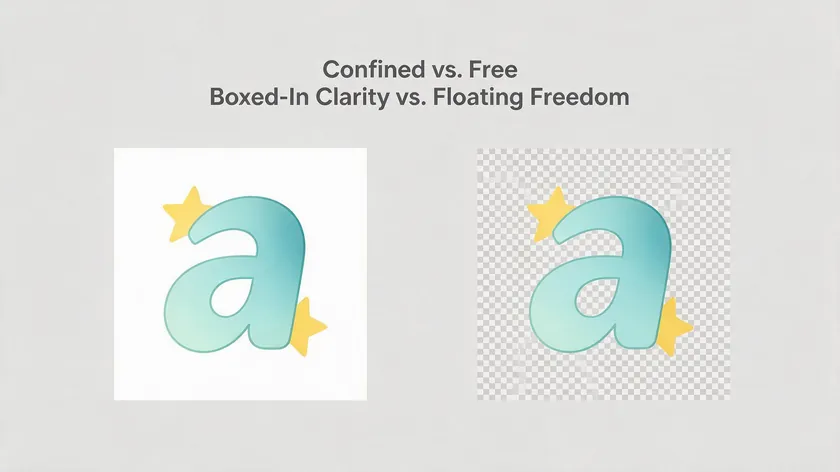
A transparent logo is your logo’s shapes and text rendered on a canvas with no visible background. If you’ve heard this effect called by different names, our explainer on what it’s called when an image has no background covers the terminology. Instead of a white or colored background behind the mark, there is nothing—pure transparency.
When you place this logo over a dark website header, a photograph, or a colored background, you see only the logo itself. No rectangle, no mismatched box, no hard edge.
Contrast that with a typical JPG logo file: even if the background looks white on a white page, it carries a solid white background baked into every pixel. Drop that file onto a navy slide deck or an Instagram post with a photo behind it, and you instantly see the problem—a blocky white rectangle framing your logo.
Common file types that support transparency include PNG for raster images, SVG for scalable vector logos, and WebP. JPEG format cannot store transparency at all.
And simply converting a JPG to a PNG file in a format converter does not remove the background—it changes the container, not the pixels. You still need to isolate and remove the logo background to create a transparent PNG.
Why You Need a Logo With a Transparent Background

Modern branding expects your logo to work on any surface—solid color panels, gradient banners, hero photos, print materials, and product packaging. A transparent logo prevents visual clashes when placed on a colored background or busy image because there is no mismatched rectangle competing for attention.
Specific use cases include:
- Website navigation bars and favicons
- Email signatures and invoices
- Pitch decks and presentations
- Social media posts and avatar frames
- Branded merchandise, signage, and packaging
- Partner pages and event sponsorship walls where multiple logos sit on varied backgrounds
Transparent logos blend seamlessly with any background, which enhances professionalism in branding and increases marketing potential across digital and print materials. They allow for versatile use across various branding contexts.
One clean, background-free master logo can be reused across hundreds of marketing materials without redesigning layouts each time, saving your graphic design team significant effort.
Raster vs Vector Logos and Why It Matters
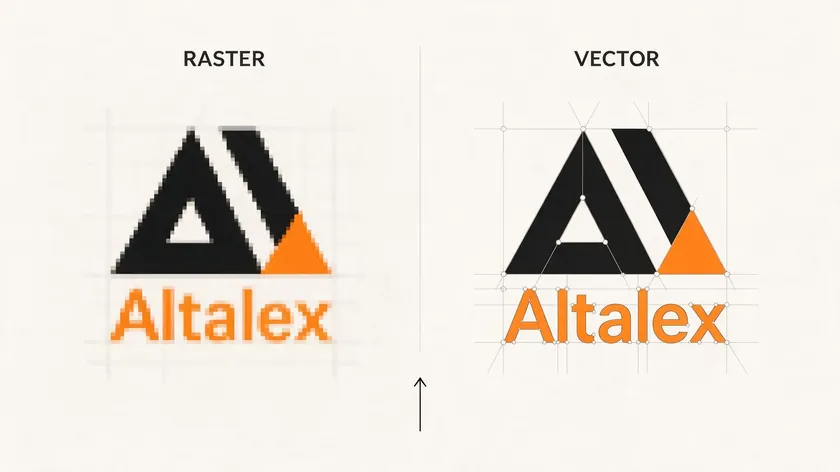
A raster logo (JPG, PNG, WebP) is built from pixels—tiny colored squares. Enlarge it past its native resolution, and edges turn blurry. A vector logo (SVG, AI, EPS) stores mathematical paths instead of pixels. SVG is a vector format that maintains infinite scalability without losing quality, which is why graphic designers prefer it for logo design.
Illustrator-style vector software handles logo creation, while raster editing software handles photos and flat image files—though for teams that already pay for a full desktop suite, a dedicated background remover is often the faster, lower-cost way to handle this one specific task. To check what you have, look at the file extension and zoom in: if edges stay crisp at 400%, it’s likely vector; if they blur, it’s raster.
Workflow implications are straightforward. If you have vector artwork, you can export directly to a PNG file with a transparent background—no background removal needed. If you only have a JPG, you need to remove the background first. And removing a logo background from a tiny 200×200 px JPEG will never look as clean on a large banner as exporting from the original vector file.
Ways to Make a Logo Background Transparent
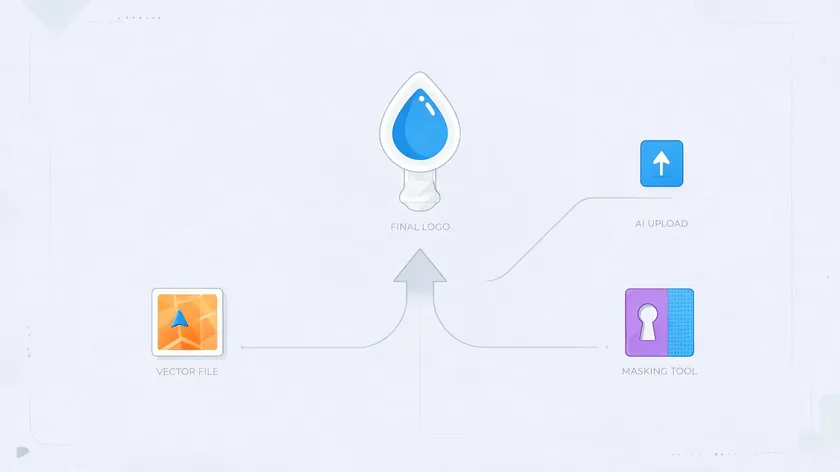
There are three broad paths to a transparent logo:
Export from source artwork
If you have AI, EPS, SVG, or a layered PSD, open the file, hide the background layer, and export as PNG with transparency enabled.
The practical route for non-designers working with flat JPG or PNG logos that already have a solid logo background.
Edit manually in design software
Desktop editing software allows precise masking, but detailed platform-specific steps live in separate guides.
To create a transparent logo, the background must be isolated and removed regardless of which path you choose. Other online tools offer background removal too—Canva’s built-in remover works well if you already have an active Canva subscription, though a dedicated background remover is often faster and lower-cost when logo work is all you need.
Once you have your background-free versions, store them in a central brand assets folder with full-color, black, and white variants so your team never redoes this work.
How to Make a Logo Transparent With an AI Background Remover
This section walks through the core workflow using a dedicated AI background remover tool—framed around RemoveBackground.app—rather than desktop software.
Step 1: Prepare and Upload Your Logo File
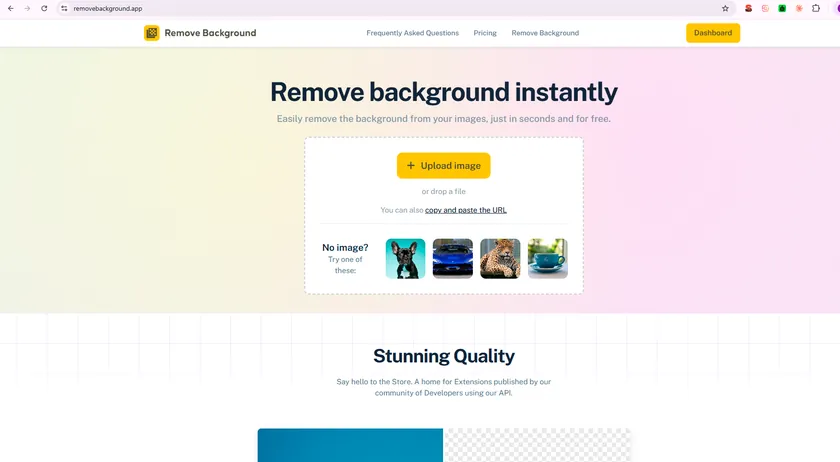
Start with the highest-resolution version you can find—ideally at least 800–1200 pixels wide. Upload a high-quality image for the best background removal results. Choose the cleanest version available: no shadows, gradients, or busy photos behind the logo if you can avoid it.
Visit RemoveBackground.app, then simply upload your logo file by clicking the upload button or using drag and drop from your desktop or mobile device. The original colored background—whether pure white, black, or a brand-specific solid color—will be detected and removed.
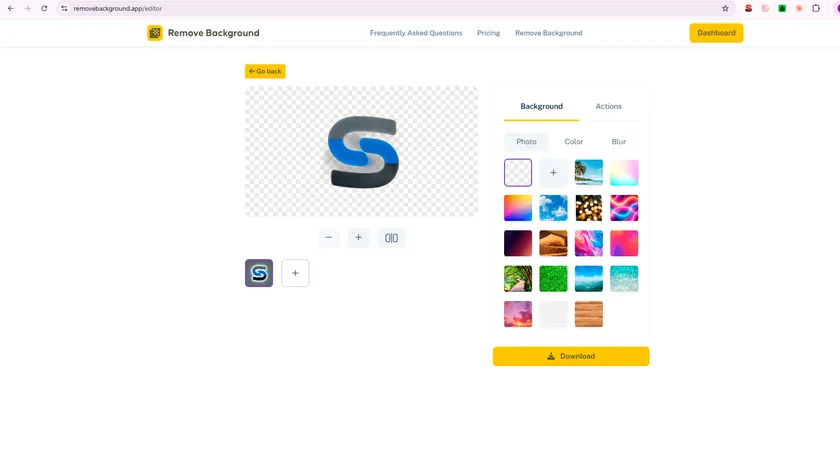
Once you upload your image, the AI analyzes the picture and separates logo elements—text, icon, and shapes—from the uniform logo background. AI tools can remove backgrounds in seconds without manual work, replacing tedious manual tracing or erasing. This is especially helpful for intricate letterforms or thin outlines in a logo design.
The tool makes this process accessible from any modern browser—no installation or complex graphic design software is required. Flat brand marks with a solid color background usually cut out cleanly. Complex 3D mockups or logos with heavy gradients may need a light manual touch-up afterward.
Step 3: Review, Refine, and Download as PNG
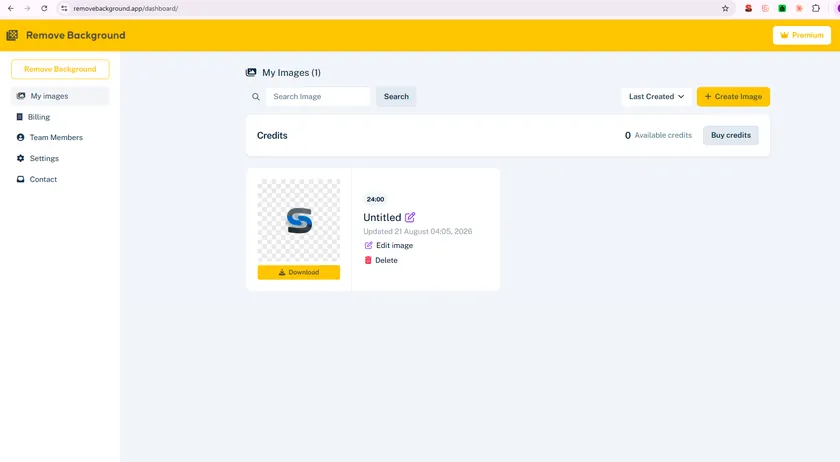
The preview should show your logo sitting on a checkerboard pattern. Transparency in graphic design is often indicated by a gray-and-white checkerboard pattern. If you see that instead of a solid white panel, your logo background is transparent.
Zoom in and check edges, inner cutouts (inside letters like A, O, R), and fine detail to ensure no leftover background fragments remain. Then download as a PNG file so transparency is preserved. Downloading as JPEG will instantly reintroduce a solid logo background. For a closer look at export settings and file handling, see our guide on how to save an image with a transparent background.
Save multiple versions: a full-color transparent PNG for light backgrounds, a white logo for dark backgrounds, and possibly a monochrome variant.
How to Save and Use Your Transparent Logo Correctly
Getting the background transparent is only half the job. The final image format for a transparent logo is usually PNG or SVG—choose PNG for web and office tools and SVG when you need infinite scaling. Transparent logos are saved as PNG files in the vast majority of business workflows.
Use your transparent PNG logos in website builders, PowerPoint decks, Google Slides, email signatures, and print layouts. If you’re dropping a logo straight into a slide, see our guide on how to remove background from image in PowerPoint. Keep the original transparent logo file intact and only resize copies to avoid repeated compression and quality loss.
Name files clearly—”brandname-logo-color-transparent.png” and “brandname-logo-white-transparent.png”—so teammates instantly know which version works on which new background.
| Aspect | JPG (Solid Background) | Transparent PNG | SVG (Vector) |
|---|
| Supports transparency | No | Yes | Yes |
| Scalability | Fixed resolution; blurs when enlarged | Fixed resolution; export at size needed | Infinitely scalable; always crisp |
| Typical file size | 30–200 KB | 50–500 KB depending on resolution | 5–20 KB for simple logos |
| Best use cases | Situations where transparency isn’t needed | Web headers, email, presentations, social media posts | Responsive websites, large exhibition banners, print |
| On dark background | Shows its white or colored box | The logo retains clean edges; background shows through | The logo retains clean edges; background shows through |
| On light background | Blends only if background color matches | Blends seamlessly | Blends seamlessly |
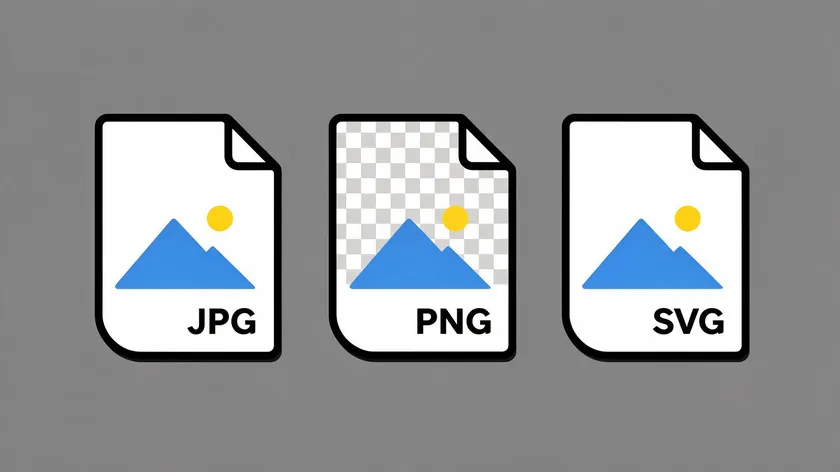
A transparent PNG or SVG should be the master digital asset in every brand toolkit. Use JPG exports only for specific, non-transparent placements.
Common Mistakes When Making a Logo Background Transparent

Converting JPG to PNG without removing the background
The white or colored background pixels are still there—format conversion alone does not create a transparent background. You need to easily remove the existing background first.
This flattens transparency onto a solid logo background. Always select PNG or SVG to keep transparency intact.
Using a tiny, low-resolution logo file
Background removal on a small image leads to rough edges and pixelation when scaled. Track down original vector artwork or a larger file before processing.
Choosing a logo color that disappears on certain backgrounds
A dark gray logo on a dark photo becomes invisible. Keep contrasting color variants ready so your logo works across every project and explore both light and dark previews before finalizing.
Catching these mistakes early saves a re-export or reprint down the line.
Key Takeaways
- A transparent logo has no visible box or colored background—just the mark itself—so it can sit cleanly on any website header, photo, slide, or printed material.
- Only PNG, SVG, and WebP formats can store transparency. JPEG format does not support transparency and should not be used for transparent logos.
- If you only have a flat JPG or PNG with a solid background, a dedicated AI background remover tool is the fastest route to a background-free version.
- Saving and organizing transparent logo files correctly prevents teams from repeating background removal for every new campaign or project.
Ready to create a transparent version of your logo? Visit RemoveBackground.app and download a clean, background-free PNG in seconds—no complex software required.
Before You Go: Answers to Common Questions
The questions below address frequent edge cases and practical scenarios—formats, quality, printing, and dark-mode sites—that go beyond the basic how-to covered above.
FAQ
How can I tell if my logo file really has a transparent background?
Open the file in a browser tab, a design tool, or a presentation slide placed over different colored shapes. If no box appears and the background shows through, the logo is transparent. Most image editors display a gray-and-white checkerboard pattern behind transparent areas—if you see that instead of solid white, your file is background-free.
Can I print a transparent logo on merchandise and packaging?
Printers typically prefer vector formats (AI, EPS, PDF, SVG) because they scale cleanly to any size. A high-resolution transparent PNG can also work for many items. Send both the vector logo and a transparent PNG to your print provider and ask which delivers the sharpest result for their specific process and substrate.
What if my logo is very detailed? Will background removal still work?
AI background removal handles most flat logos well, but extremely detailed crests, gradients, or textured effects may need careful checking and light manual touch-up in dedicated desktop editing software.
If your logo has that level of complexity, source the original vector artwork and export directly to PNG with transparency rather than relying on a small JPG.
Do I need a different transparent logo for dark and light backgrounds?
Yes. Many brands keep at least two transparent logo variants: full-color or dark for light backgrounds, and white or light for dark backgrounds or photos. Preview the logo on both black and white rectangles while editing so you can decide which variants to export and save as transparent PNGs.
The overall principles are identical—remove the logo background, then export as PNG with transparency. However, detailed platform-specific steps live in separate guides. If you’re already working inside a particular app, look for a dedicated “make logo transparent in [software]” tutorial to get the exact menu paths and settings for that tool.