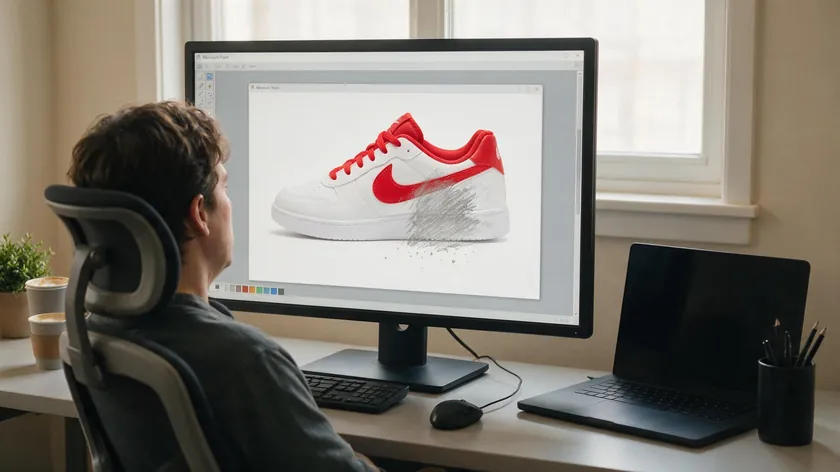
- Classic Microsoft Paint still cannot export a genuinely transparent PNG—even with transparent selection turned on—and the real workaround is cutting the subject out and placing it onto a new solid-color canvas.
- Paint 3D’s true transparent canvas and PNG export fix this limitation, and pairing either tool with an AI background remover gives cleaner edges—see the comparison table further down for when each option fits.
If you have ever tried to make a background transparent in Microsoft Paint, you know the frustration. You erase the background, save the file, and reopen it only to find a solid white background staring back at you. This article walks through what actually works in 2026, from classic MS Paint workarounds to Paint 3D and AI-powered background removal.
Table of Contents
Can You Really Make a Background Transparent in Microsoft Paint
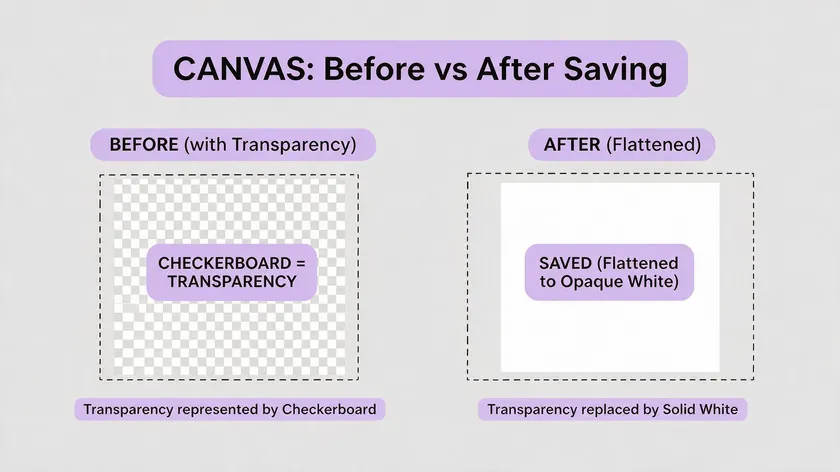
Here is the short answer: Older versions of Microsoft Paint do not support permanent transparency. Classic Microsoft Paint on Windows 10 and early Windows 11 builds has no alpha channel support. When you save a PNG file, every empty or erased pixel is filled with the canvas color—typically white—so the image background is always flattened onto a solid color.
Transparency in older versions of Microsoft Paint is temporary and for layering only. The transparent selection option hides pixels matching Color 2 while you drag or paste a selection, but that effect vanishes the moment you export. Even on a 2026 Windows 11 build running the classic editor, erasing an area produces white, not the checkerboard pattern you would see in a full photo editor.
Microsoft Paint does feature a dedicated Remove Background tool in Windows 11 (Paint app version 11.2306.30.0 and higher, with layers and transparent PNG export), but that updated app is unavailable on Windows 10 and on older devices that have not received the update. If you need a truly transparent image for logos, icons, or overlay graphics, you must either switch to Paint 3D or use an external background removal process.
Workarounds for a Transparent Background in Classic MS Paint
Classic MS Paint offers two manual workarounds for achieving something close to a transparent background—cutting the main subject out and moving it to a new canvas or using the transparent selection option to hide a single color while rearranging elements. Below are both methods in detail.
How to Simulate a Transparent Background in Classic MS Paint
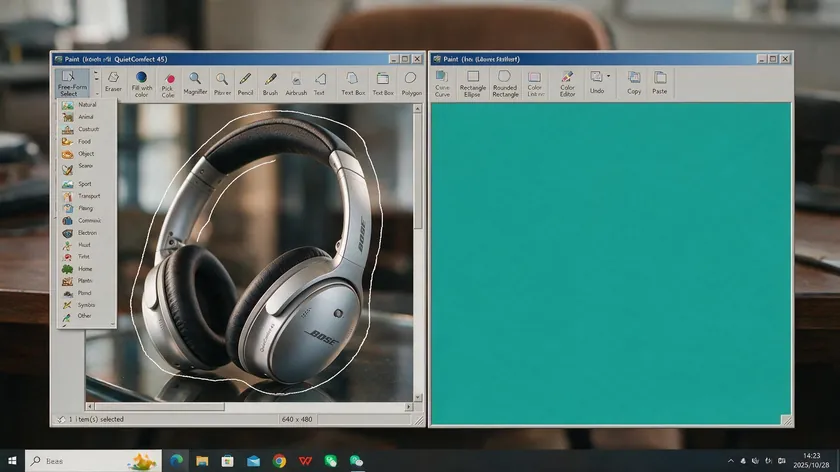
Microsoft Paint allows manual selection methods for cutting out objects, and the simplest method is the “cut and move” technique. Launch Microsoft Paint and open your image. Click the select button in the toolbar, choose Free-form selection, and carefully draw around the subject you want to keep. Use free-form selection to protect the object in Paint by tracing its edges with your mouse as closely as possible.
Before you finish outlining, enable transparent selection under the Select menu so the surrounding background color is ignored while you drag. Press Ctrl + X to cut the protected object, then open a new MS Paint window. Fill the canvas with the solid color that matches your intended use—for example, the same teal hex code as a website banner. Paste (Ctrl + V) the subject onto that new background.
In MS Paint, cutting the object this way does remove the background visually. A seller in mid-2026 could cut a product photo from its white background and place it on a brand-color canvas for a quick promotional banner. The catch: the final file is still flattened, so the exported PNG will show whatever canvas color you chose—not true transparency.
How to Use Microsoft Paint’s Transparent Selection Option
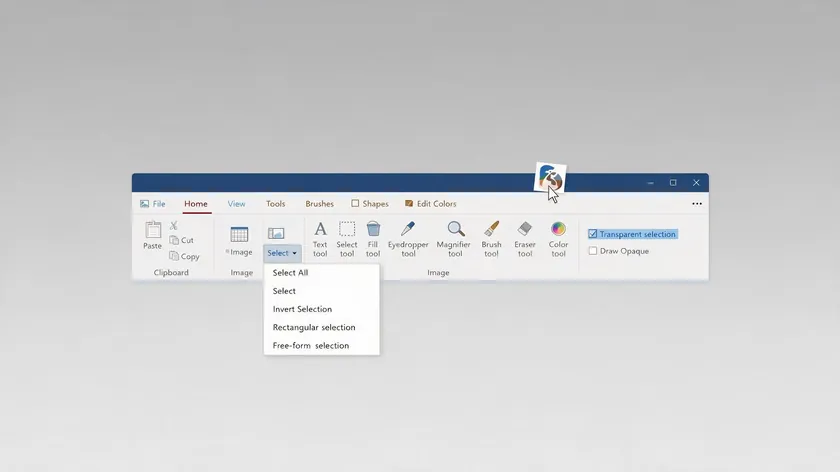
Users can enable Transparent Selection in older versions of Paint by clicking the Select dropdown in the ribbon and toggling the option on. It works with both rectangular and free-form selection modes and ignores any pixel that matches Color 2.
Here is a quick example: set Color 2 to white, enable the transparent selection option, and then drag a logo that has a white background transparent area onto a colored header region. The white box disappears while you move the selection—helpful for quick mockups. Right-click to adjust placement as needed.
Keep in mind that this is not a true image background transparent effect for exports. Save the file, and the white background reappears in any app that opens the PNG. Edges also tend to be jagged, so this method works best for low-precision tasks or when you simply need to preview how a subject looks overlaid on a new background.
Step‑by‑Step: Make a Transparent Background in Paint 3D
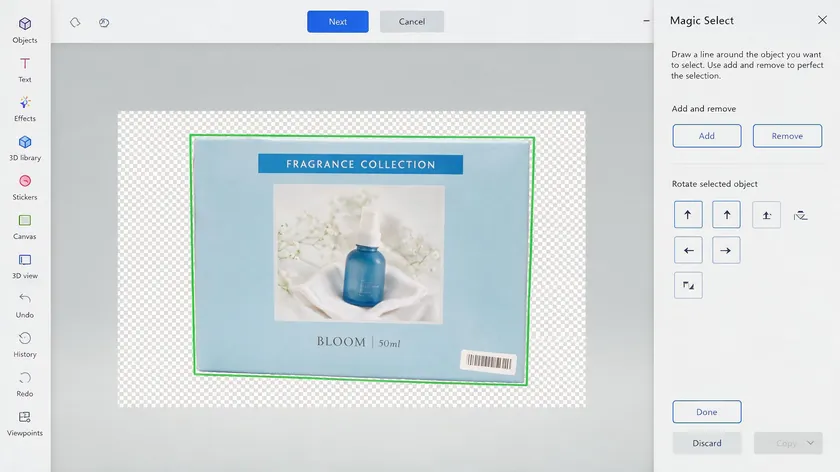
Paint 3D ships with many Windows 10 and Windows 11 installations and supports a genuine transparent canvas option. Paint 3D requires Windows 10 or 11 for background removal, so confirm you have it installed before starting.
- Open Paint 3D, go to Menu → Open, and browse to your image.
- Click Magic Select on the top toolbar to isolate the main subject. Drag the selection box tightly around the subject’s edges.
- Use the Add and Remove brush tool options to refine the selection—especially around hair, glass, or curved product outlines—then click Done.
- Select Canvas on the top menu and toggle the transparent canvas option on. The background turns into a checkerboard, indicating transparency. Delete any remaining background fragments.
- Save via Menu → Save as → Image and choose PNG format.
Saving as PNG preserves the transparent background, so the file keeps its transparency when opened in any compatible app. Name the file clearly (e.g., “logo-transparent-2026.png”) so you can reuse it later. Use Magic Select in Paint 3D to isolate the subject whenever you need a clean cut-out of a product, logo, or sign.
Combining AI Background Removal with Microsoft Paint

Dedicated AI background removers use machine learning to detect and strip backgrounds in seconds, producing a clean, transparent image even around complex edges like hair or reflective surfaces. This makes them especially useful for sellers and marketers dealing with high volumes of images.
The workflow is straightforward: upload your photo to RemoveBackground.app, let the tool process it in just a few clicks, then download the result as a PNG file with a transparent background. Reopen the file in Paint 3D to keep transparency, or in classic Microsoft Paint if you only need to add text or annotations on a flat canvas.
Consider an online seller preparing ten product shots for a summer catalog. Manual freeform selection in MS Paint would take hours and leave rough edges. An AI background remover handles the batch faster, with cleaner results—then the seller can reopen each transparent image in Paint 3D to add a seasonal new background or overlaid text. This combined process is especially helpful for businesses updating social media platforms, website banners, or marketplace listings regularly in 2026.
When to Use MS Paint, Paint 3D, or an AI Background Remover
| Feature | Classic MS Paint | Paint 3D | AI Background Remover |
|---|
| True transparency export | No-flattened onto solid color | Yes-transparent canvas + PNG | Yes, PNG with alpha channel |
| Edge quality | Low-jagged, manual selection | Medium-high magic select with refinement | High-AI detects fine edges automatically |
| Layers / composition | None | Subject isolation + canvas control | Output integrates into any editor |
| Batch processing | None | One image at a time | Fast-multiple photos in minutes |
| Ideal use case | Quick mockups, solid-color swaps | Built-in Windows transparent PNG creation | High-volume catalogs, complex photos, professional results |
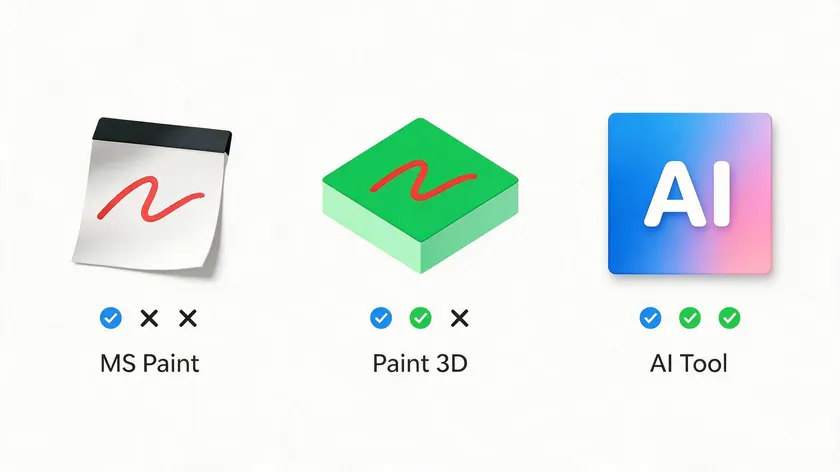
Teams who already pay for a full creative suite like Photoshop or Canva may prefer handling background removal there, but for non-designers focused on quick results, an AI tool paired with Paint 3D covers most needs. Choose MS Paint only for simple solid-color swaps; Paint 3D when you want to stay inside Microsoft’s ecosystem; and an AI remover when speed, volume, or edge complexity matters most.
Practical Uses for Transparent Background Images
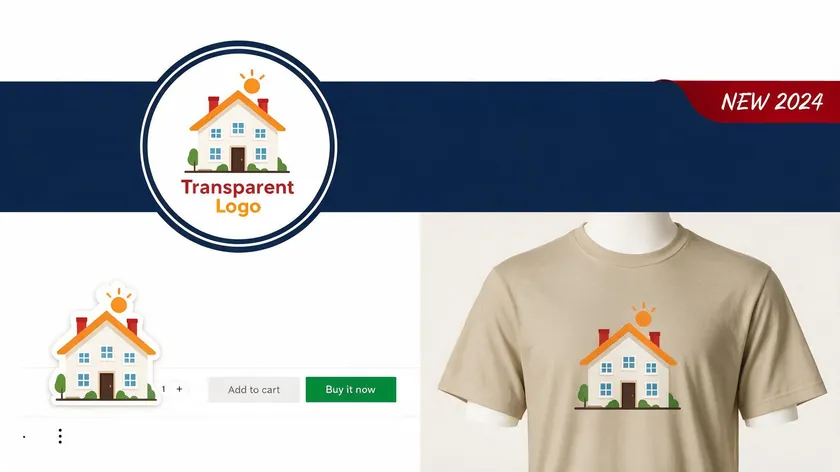
Transparent backgrounds are essential for logos and branding—without them, your logo shows an ugly white background on colored navigation bars, email signatures, or digital ads. They also improve e-commerce product visibility, letting shoppers focus on the item itself across marketplace thumbnails and listing pages.
Transparent backgrounds also reduce distractions and improve the aesthetics of marketing materials across social media platforms, slide decks, and videos. Custom merchandise designs need them for versatile application on t-shirts, mugs, and posters, and they simplify print materials like flyers by preventing unwanted rectangles around the artwork.
Building a small internal library of transparent PNG digital assets—logos, icons, and product silhouettes—pays off quickly. Instead of repeating the background removal process every time you create a new campaign, you drag a ready-made transparent file into Paint or Paint 3D and adjust it for the task at hand.
Key Takeaways
- Classic Microsoft Paint cannot export true transparent background images; any transparent effect inside the app is flattened onto a solid color when you save.
- You can simulate a transparent background in MS Paint by cutting a subject from its original image background and placing it on a new canvas that matches your final use.
- Paint 3D offers real transparent canvas support and, combined with Magic Select, is a practical built-in choice for making an image background transparent on modern Windows devices.
- For precise, repeatable background removal—especially on complex photos—pairing an AI background remover with Paint or Paint 3D gives cleaner edges and saves substantial editing time.
- Building a reusable library of transparent PNG logos and product shots in 2026 helps streamline everything from e-commerce listings to social media templates and printed materials.
To streamline background removal in your workflow, start by isolating one frequently used asset—such as your primary logo or best-selling product photo—and turn it into a transparent PNG with RemoveBackground.app, then reuse that file in future Microsoft Paint and Paint 3D projects instead of starting from scratch every time.
FAQ
Can I make a white background transparent in classic Microsoft Paint?
No, MS Paint cannot convert a white background to transparent in the saved file. It can only hide the selected background color temporarily when moving selections.
To work around this inside Paint, use transparent selection with Color 2 set to white so the white box disappears while you rearrange elements—but the moment you export, the white returns. When you need a PNG with a genuinely transparent background, use Paint 3D with the transparent canvas enabled or run the image through an AI background remover first.
Why does my “transparent” PNG from Paint still have a white background?
You did nothing wrong—this is a technical limitation of classic MS Paint itself. When you save as PNG, the app fills all empty areas with the canvas color (typically white) because it does not support an alpha channel. To get a truly transparent PNG, repeat the process in Paint 3D with the transparent canvas toggled on, or remove the background beforehand using a dedicated background removal tool.
The Eraser in current Windows 10 and Windows 11 versions of MS Paint only replaces pixels with Color 2—it does not create transparency. Older tutorials mentioning a “transparent eraser” are outdated. For transparency-related tasks, use free-form selection to cut objects, switch to Paint 3D, or rely on an AI background remover.
How can I keep transparency when editing a PNG in Paint?
Opening a transparent PNG in classic MS Paint flattens it onto a solid canvas, so transparency is lost on re-export.
Instead, open the file in Paint 3D, where the transparent background stays intact. Add text, shapes, or annotations there, then save again as PNG. This way the transparent areas survive the entire editing and export process.
Do I need a professional photo editor to remove backgrounds in 2026?
Not necessarily. While full creative suites still offer powerful manual tools, many users can make an image background transparent by combining Paint 3D and an AI background remover—no advanced design skills required.
Reserve a professional photo editor only for the most demanding projects where fine masking, edge feathering, or complex compositing is essential. For everyday tasks, the built-in Windows tools paired with automated background removal deliver results that are more than sufficient.